Write the following in the .vimrc :
set cindent
set enc=taiwan
set encoding=utf-8
set hls
set nocompatible
set sw=2
highlight Comment ctermfg=darkcyan
highlight Search term=reverse ctermbg=4 ctermfg=7
set autoindent
set ai
set cin
set ru
set showcmd
set bs=2
set ts=4
syntax on
set background=dark
set t_Co=256
set number
filetype plugin on
1/25/2012

screen 設定檔 [sharing]
Share for everyone:
write the following in the .screenrc
termcapinfo xterm 'hs:ts=\E]2;:fs=\007:ds=\E]2;screen\007'
termcapinfo xterm 'hs:ts=\E]0;:fs=\007:ds=\E]0;bash\007'
caption always "%{= wk} %{= KY} [%n]%t @ %H %{-} %= %{= KR} %l %{-} | %{= KG} %Y-%m-%d %{-} "
hardstatus " %-Lw%{= Bw}louwang%n%f %t%{-}%+Lw %=| %0c:%s "
shelltitle '$ |bash'
defhstatus "\005t"
write the following in the .screenrc
termcapinfo xterm 'hs:ts=\E]2;:fs=\007:ds=\E]2;screen\007'
termcapinfo xterm 'hs:ts=\E]0;:fs=\007:ds=\E]0;bash\007'
caption always "%{= wk} %{= KY} [%n]%t @ %H %{-} %= %{= KR} %l %{-} | %{= KG} %Y-%m-%d %{-} "
hardstatus " %-Lw%{= Bw}louwang%n%f %t%{-}%+Lw %=| %0c:%s "
shelltitle '$ |bash'
defhstatus "\005t"
1/18/2012
關閉 ubuntu 預設的自動鎖螢幕
System -> Preferences -> Screensaver
to open the Screensaver Preferences" dialog box.
Uncheck "Lock screen when screensaver is active" at the bottom of the dialog box.
1/08/2012
12/18/2011
Change the LED in mouse
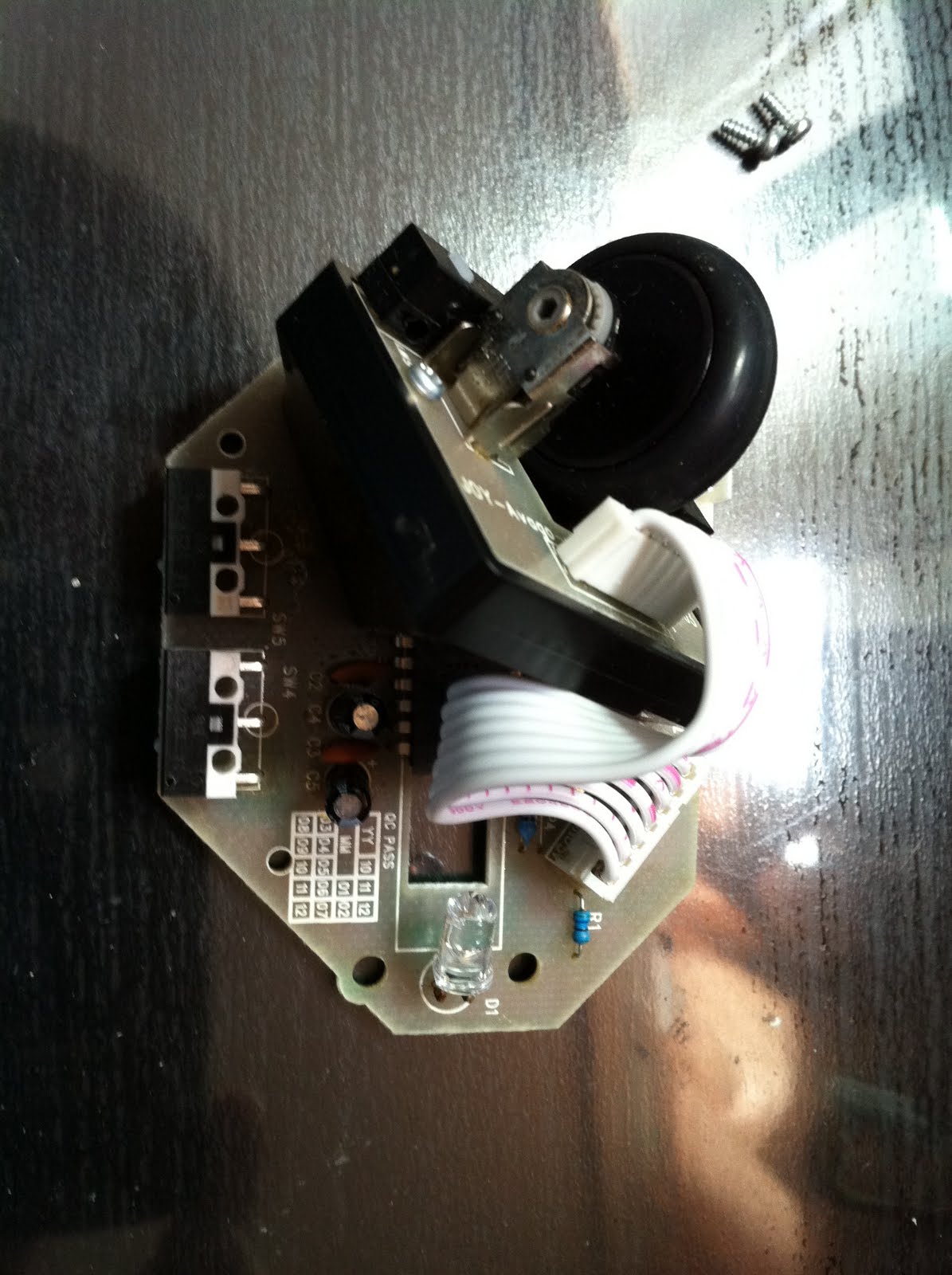 |
| 滑鼠拆開後的主體 |
 |
| 開始解焊原本滑鼠的紅色LED |
 |
| 準備要換上的超級藍光LED |
 |
| YES! 安裝完成 酷炫藍光射出 |
 |
| 好像比原本紅光來的亮 |
 |
| 裝上外殼後 |
 |
| 工作站一覽 |
4/30/2011
Install GlassFish on Linux
o. sudo apt-get update
o. sudo apt-get install sun-java6-jdk sun-java6-jre
o. add export JAVA_HOME="/usr/lib/jvm/java-6-sun-1.6.0.06" to ~/.bashrc
o. download glassfish for linux from glassfish official website
o. sh glassfish-3.0.1-unix.sh
o. cd ~/glassfishv3/glassfish/bin
o. ./startserv #start glassfish
o. sudo apt-get install sun-java6-jdk sun-java6-jre
o. add export JAVA_HOME="/usr/lib/jvm/java-6-sun-1.6.0.06" to ~/.bashrc
o. download glassfish for linux from glassfish official website
o. sh glassfish-3.0.1-unix.sh
o. cd ~/glassfishv3/glassfish/bin
o. ./startserv #start glassfish
4/05/2011
大量取代檔案中的關鍵字
這裡我所用到的case是我在許多網頁檔案中都有我blog的連結, 但是現在我domain name改了, 所以如果要一個一個檔案開檔然後修改就很麻煩, 這裡記錄快速方法:
grep 'keyword' * | sed 's/original_domain/new_domain/g'
keyword: 你想要找的關鍵字
original_domain: 要被取代的字串 (ex: IP address, domain name, parameter)
new_domain: 要填上的字串
如果要直接修改檔案的話請用 sed -i 's/A/B/g' file.txt.
grep 'keyword' * | sed 's/original_domain/new_domain/g'
keyword: 你想要找的關鍵字
original_domain: 要被取代的字串 (ex: IP address, domain name, parameter)
new_domain: 要填上的字串
如果要直接修改檔案的話請用 sed -i 's/A/B/g' file.txt.
3/30/2011
在Linux下大量改變副檔名
雖然在linux之下副檔名並沒有什麼意義, 但是有時候為了辨識容易還是會用到.這裡提供一下在bash/C shell下如何大量改變副檔名
Bourne Shell:
for f in *.foo; do
base=`basename $f .foo`
mv $f $base.bar
done
C Shell:
foreach f ( *.foo )
mv $f $f:r.bar
end
Bourne Shell:
for f in *.foo; do
base=`basename $f .foo`
mv $f $base.bar
done
C Shell:
foreach f ( *.foo )
mv $f $f:r.bar
end
10/15/2010
5/05/2010
vi 編輯完檔案 發現忘記按sudo編輯 之 解決方法
:w !sudo tee %
有時候沒有注意編輯檔案的權限, 等到全部編輯完才發現忘記打sudo,
我可不想跳出去再重新編輯一次, 這時候在vi 指令模式下用以上指令即可儲存.
有時候沒有注意編輯檔案的權限, 等到全部編輯完才發現忘記打sudo,
我可不想跳出去再重新編輯一次, 這時候在vi 指令模式下用以上指令即可儲存.
5/04/2010
在eeebox b202, FreeBSD 8.0 release 安裝 wireless card driver
This is the process to setup eeebox's wireless driver on FreeBSD:
The eeebox's wireless chip is rt2860 made by the company - ralink.
method 1(WARNING: this method is NOT success in my trial):
convert windows driver for rt2860 to FreeBSD kernel module.
download windows version driver: rt2860.inf, rt2860.sys
put kernel module generated from ndisgen which is rt2860_sys.ko to /boot/modules
edit /boot/loader.conf add rt2860_sys_load="YES"
result -> fail -> the strange error message keep output to screen
"ndis0 if_input should not be called"
accidently find there are already a driver for rt2860 for FreeBSD 7.0 and 8.0 release
so I abandon method 1 and turn to method 2.
method 2 (SUCCESS): find the kernel module.
Surprisely, someone has write the rt2860/rt2870 driver for FreeBSD.
http://repo.or.cz/w/ralink_drivers/rt2860_fbsd8.git
use git clone links to download whole source code
make
cp rt2860.ko/ rt2860.ko.module to /boot/kernel
set rt2860_load="YES" in /boot/loader.conf
reboot system.
Loading rt2860.ko/rt2870.ko will create the hardware interface rt28600/rt28700 respectively but since version 8 of FreeBSD, these are not controlled directly for the usual settings but with a virtual interface that must created either manually like:
wlans_rt28600="wlan0"
ifconfig_wlan0="WPA DHCP"
network={
ssid="freebsdap" (ssid)
psk="freebsdmall" (password)
}
#/etc/rc.d/netif start # restart the network interface
SUCCEED!!
reference:
"FreeBSD wireless handbook" -
http://www.freebsd.org/doc/en_US.ISO8859-1/books/handbook/network-wireless.html
file path summary:
/boot/loader.conf -> setting which module to boot when starting the system.
/boot/defaults/loader.conf -> default modules to boot.
/boot/modules -> put the custom kernel modules .ko to here
/boot/kernels -> put your .ko .ko.symbols to here
The eeebox's wireless chip is rt2860 made by the company - ralink.
method 1(WARNING: this method is NOT success in my trial):
convert windows driver for rt2860 to FreeBSD kernel module.
download windows version driver: rt2860.inf, rt2860.sys
put kernel module generated from ndisgen which is rt2860_sys.ko to /boot/modules
edit /boot/loader.conf add rt2860_sys_load="YES"
result -> fail -> the strange error message keep output to screen
"ndis0 if_input should not be called"
accidently find there are already a driver for rt2860 for FreeBSD 7.0 and 8.0 release
so I abandon method 1 and turn to method 2.
method 2 (SUCCESS): find the kernel module.
Surprisely, someone has write the rt2860/rt2870 driver for FreeBSD.
http://repo.or.cz/w/ralink_drivers/rt2860_fbsd8.git
use git clone links to download whole source code
make
cp rt2860.ko/ rt2860.ko.module to /boot/kernel
set rt2860_load="YES" in /boot/loader.conf
reboot system.
Loading rt2860.ko/rt2870.ko will create the hardware interface rt28600/rt28700 respectively but since version 8 of FreeBSD, these are not controlled directly for the usual settings but with a virtual interface that must created either manually like:
wlans_rt28600="wlan0"
ifconfig_wlan0="WPA DHCP"
network={
ssid="freebsdap" (ssid)
psk="freebsdmall" (password)
}
#/etc/rc.d/netif start # restart the network interface
SUCCEED!!
reference:
"FreeBSD wireless handbook" -
http://www.freebsd.org/doc/en_US.ISO8859-1/books/handbook/network-wireless.html
file path summary:
/boot/loader.conf -> setting which module to boot when starting the system.
/boot/defaults/loader.conf -> default modules to boot.
/boot/modules -> put the custom kernel modules .ko to here
/boot/kernels -> put your .ko .ko.symbols to here
4/22/2010
如何刪除幾天以前的舊檔案
指令如下
find /path/to/files* -mtime +5 -exec rm {} \;
o. /path/to/files* 是你所要刪除檔案的所在資料夾
o. -mitme 後面接的是檔案距離上次修改的時間. 如果打+5代表刪除所有五天以前的檔案
o. 最後的rm就是刪除. 如果要刪除的檔案是資料夾請加 -r.
o. 注意rm, {} , \ 之間有空格.
3/12/2010
make your own ls color
o. add this three line to your ~/.bashrc
alias ls='ls --color'
LS_COLORS='di=1:fi=0:ln=31:pi=5:so=5:bd=5:cd=5:or=31:mi=0:ex=35:*.rpm=90'
export LS_COLORS
o. parameter meaning:
di = directory
fi = file
ln = symbolic link
pi = fifo file
so = socket file
bd = block (buffered) special file
cd = character (unbuffered) special file
or = symbolic link pointing to a non-existent file (orphan)
mi = non-existent file pointed to by a symbolic link (visible when you type ls -l)
ex = file which is executable (ie. has 'x' set in permissions).
o. color number:
0 = default color
1 = bold
4 = underlined
5 = flashing text
7 = reverse field
31 = red
32 = green
33 = orange
34 = blue
35 = purple
36 = cyan
37 = grey
40 = black background
41 = red background
42 = green background
43 = orange background
44 = blue background
45 = purple background
46 = cyan background
47 = grey background
90 = dark grey
91 = light red
92 = light green
93 = yellow
94 = light blue
95 = light purple
96 = turquoise
100 = dark grey background
101 = light red background
102 = light green background
103 = yellow background
104 = light blue background
105 = light purple background
106 = turquoise background
3/04/2010
scientific method [FYI]
In the scientific method, you go through the following steps:
- You make observations.
- You develop hypotheses to explain these observations.
- You suggest experimental ways to test these hypotheses.
- You predict the results of the experiments.
- You run the experiments.
- You compare the results of your experiments to your predictions.
- You publish all your results.
2/24/2010
The process of Learning a "tool"
1. To know why to Learn? (motivation)
2. To Learn how to run.
3. To learn how to use it's basic functions.
4. To learn how to apply this tool to your work.
5. Practice makes perfect.
6. To understand the theory behind this tool.
2/14/2010
array pointer and pointer array
#define COLS 5 /* assume array size = 5*/int (*xptr)[COLS]; /* this is an array's pointer */int *xptr[COLS]; /* this is a pointer array */
function pointer example
#include
#include
void func(int);
main(){
void (*fp)(int);
fp = func;
(*fp)(1);
fp(2);
exit(EXIT_SUCCESS);
}
void
func(int arg){
printf("%d\n", arg);
}
#include
void func(int);
main(){
void (*fp)(int);
fp = func;
(*fp)(1);
fp(2);
exit(EXIT_SUCCESS);
}
void
func(int arg){
printf("%d\n", arg);
}
2/12/2010
illustrate a[x] means *(a+x) equals *(x+a) equals x[a]
code:
int main(void)
{
char a[4]="123";
a[2]='x';
puts(a);
2[a]='y';
puts(a);
return 0;
}
executive result:
12x
12y
2/03/2010
[Research] List the keyword
List the keyword:
o. write a sentence about your topic
o. pull out the keywords and phrases in the sentence above and list them separately.
o. start expanding the list with related terms and synonyms.
o. Are there any larger categories that might lead you to information?
o. Are there any words or phrases that are more specific?
o. now you have a beginning list of key words and phraeses to begin searching for
information.
o. Synonyms and Related Terms
o. Larger Categories
o. Smaller Categories
訂閱:
文章 (Atom)